Create and manage a connection
Register each external application with the organisation whose members will sign in. A connection belongs to one organisation and has its own client ID, secret, callback URLs and membership access policy.
1. Open member single sign-on
Enable the organisation's member portal and confirm a member can sign in. Open Integrations → Member single sign-on. Managing connections requires the Manage integrations permission and public API access on the organisation's account.
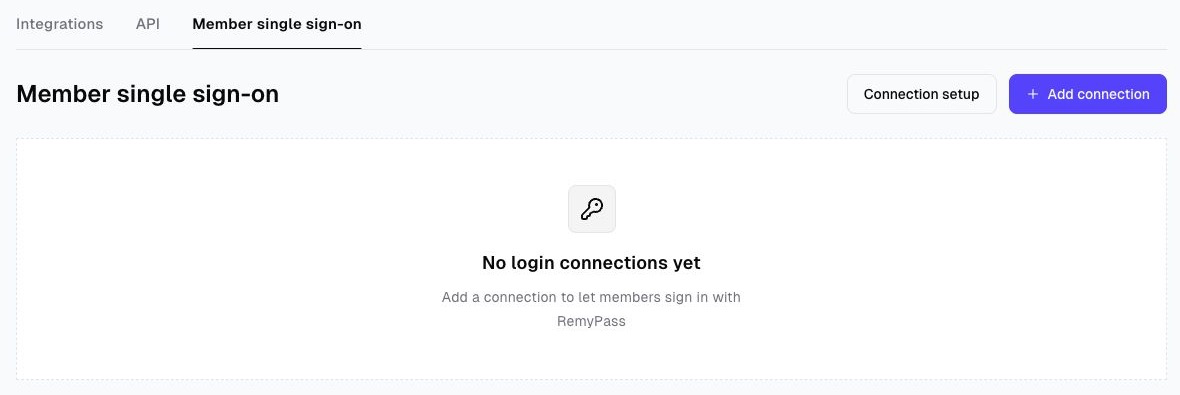
2. Add a connection
Click Add connection. Give it a recognisable name, such as “Member application”, and enter the exact HTTPS callback URL configured by your application developer. Up to ten callbacks can be registered. Wildcards, fragments, credentials in the URL and HTTP callbacks are not accepted.
Choose whether a current active membership is required. When enabled, expired and past-due memberships do not qualify; membership validity follows RemyPass's effective membership status. When disabled, an active member account is sufficient.
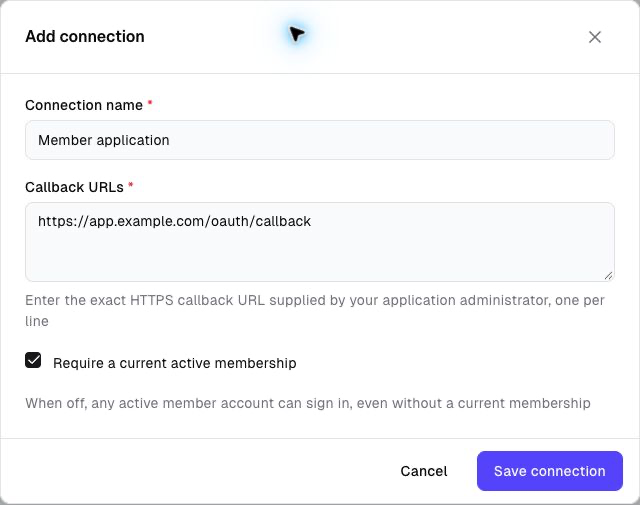
The callback shown is an example; replace it with your application's actual callback URL.
Click Save connection, then save the client ID and the one-time client secret securely on the application server before dismissing the secret dialog. The secret cannot be retrieved again. Rotating it, editing the connection or disabling it invalidates existing grants. Deleting the connection or organisation revokes its access.
3. Find the endpoints
Click Connection setup, beside Add connection, to view the authorisation, token, user-info and revocation URLs, plus the supported scopes. Copy these into your application's OAuth configuration.
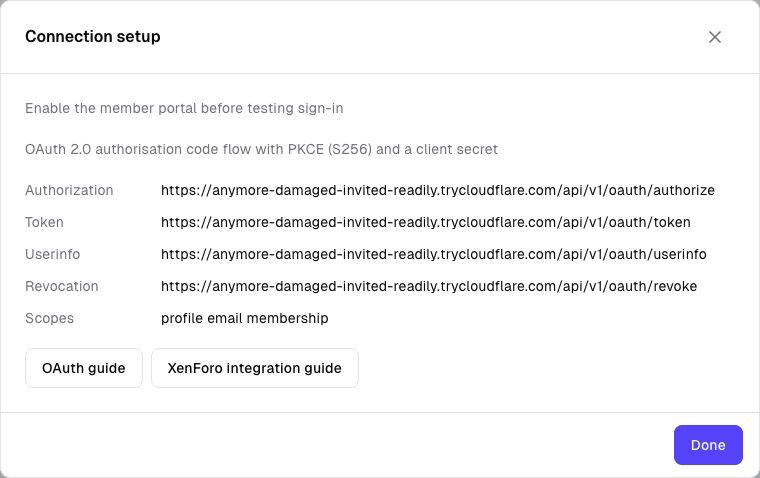
This screenshot shows a development environment. Use the URLs displayed in your own Connection setup dialog, not the example hostname in the screenshot.
Only active member accounts in that organisation can authorise a connection. Administrator impersonation/social portal accounts cannot be used for member OAuth. A disabled organisation or member portal cannot issue or validate OAuth access.
Choose the membership policy
| Setting | Who can sign in |
|---|---|
| Require a current active membership: on | Active member accounts with at least one effective active membership |
| Require a current active membership: off | Active member accounts, even without a current membership |
The requirement is enabled by default. An inactive member account cannot authorise a connection in either mode. The membership check does not restrict access to particular membership types; a connected application can use membership_type_ids to implement additional rules.
Manage credentials and access
- Edit: change the name, callbacks, membership requirement or enabled state. Saving invalidates existing authorisation requests, codes and tokens for that connection.
- Rotate secret: generates a new secret, shown once, and invalidates the previous secret and existing grants. Update the external application's configuration immediately.
- Disable: stops new sign-ins and makes existing OAuth access unusable. Re-enabling requires members to authorise again.
- Delete: removes the connection and its grants. Removing the organisation also removes every OAuth connection and grant it owns.
These actions invalidate RemyPass OAuth access; they do not automatically terminate a separate session already established by the connected application.
Use separate connections for test and production environments so callback changes and secret rotation do not affect both environments. Store secrets on the application's server; they are not API keys and must not be embedded in browser JavaScript.
Continue with the authorisation code flow.